

If you need to log out of Netflix on your TV, you can do it in a few different ways depending on the device: use the Netflix app’s Settings or Get Help screen, remove the app or account on that device, or sign out remotely from your Netflix account via the website. This guide gives clear, step-by-step instructions for smart TVs, Roku, Amazon Fire TV, Apple TV, game consoles and how to sign out of all devices from your account so you can protect your profile and keep streaming limits under control.
Why logging out of Netflix on a TV matters
Signing out of Netflix on a TV isn’t just about stopping playback — it protects your account, viewing privacy, and profile recommendations. If you use a shared TV (in a hotel, guest room, dorm, or a friend’s house), leaving your account logged in can expose personal data and let others continue streaming under your plan. Logging out also helps when you reach simultaneous stream limits or when you need to troubleshoot playback problems linked to an app that is stuck on a specific profile.
In short, logging out matters for security, privacy, and account management. This article explains the fastest ways to sign out on common TV platforms and shows how to sign out remotely if you no longer have access to the TV.
How to log out of Netflix on most smart TVs (general method)
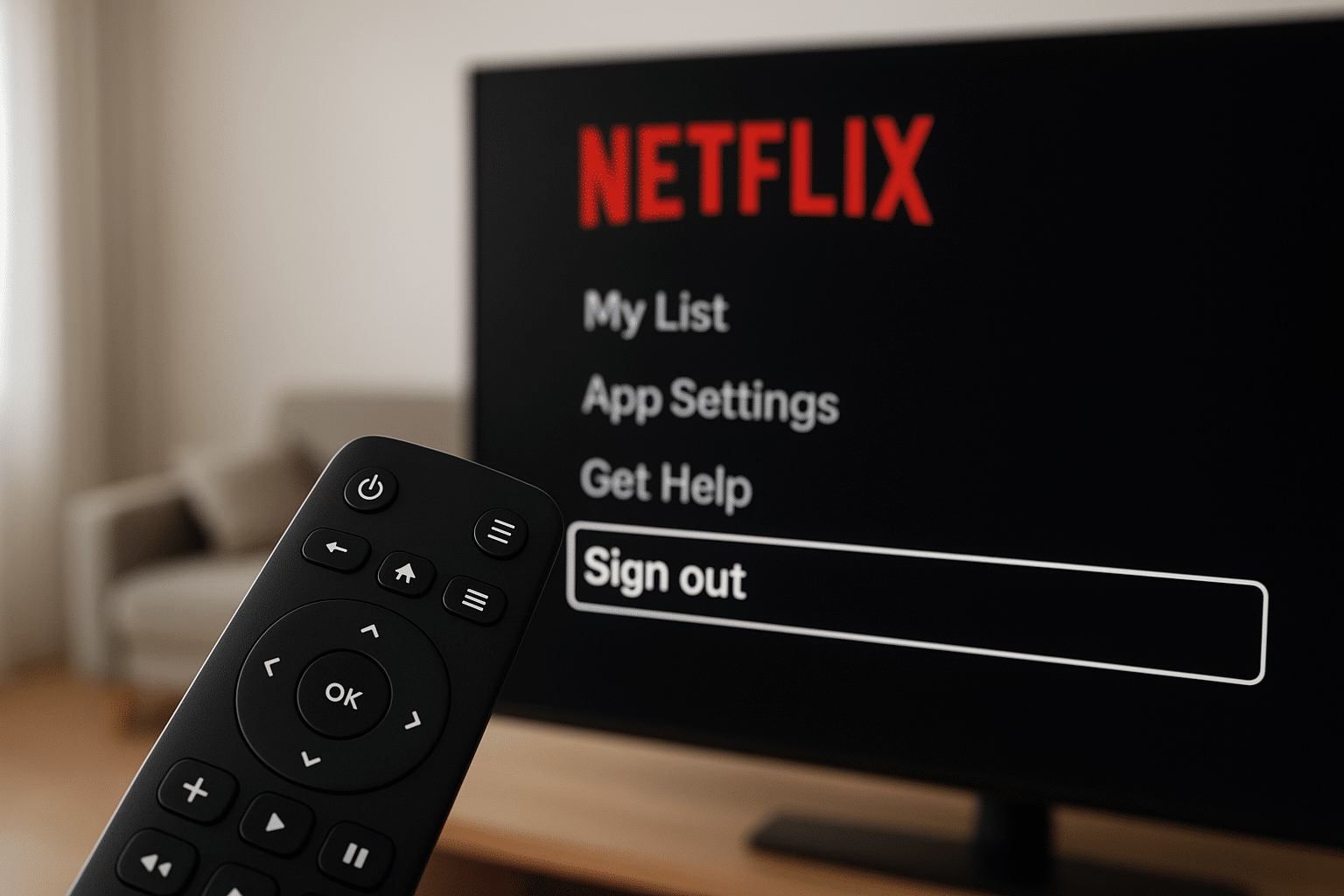
Many smart TVs run the Netflix app with a similar layout. The quickest place to look is the profile or Settings/Get Help screen inside the Netflix app where you’ll often find a “Sign out” or “Sign out of Netflix” option. If the app is frozen, you can also remove or reset the app on the TV or perform a remote sign-out from your Netflix account.
General steps (works on many Samsung, LG, Sony, Vizio and other smart TV apps):
- Open the Netflix app on the TV.
- Navigate to the left to open the side menu (or press Back/Up to reveal menus).
- Select your profile avatar or go to “Get Help” or “Settings.”
- Choose “Sign out,” “Sign out of Netflix,” or “Deactivate.”
- Confirm “Yes” to sign out.
If you can’t find a sign-out option, try this alternative within the app: go to “Get Help” and select “Sign out” or use the following sequence on some TVs: Home > Settings > Apps > Netflix > Sign out or Clear data.
How to log out on specific TV platforms and streaming devices
Different devices put the sign-out option in different places. Below are device-specific instructions that cover the most common setups.
Roku
On Roku, Netflix sign-out requires removing the channel or signing out from within the app depending on software version.
- Open Netflix on the Roku.
- If you see the Netflix home screen, press Left to open the menu, then select “Get Help” and choose “Sign out.” Confirm.
- If the app doesn’t show “Get Help,” exit to the Roku home screen, highlight the Netflix channel, press the * (star) button on your remote, and choose “Remove channel.” Reinstalling the channel later will require signing in again.
Removing the Netflix channel is a reliable way to force sign-out when the app menu is limited.
Amazon Fire TV & Fire TV Stick
Fire TV devices typically include a Settings or Get Help entry inside the Netflix app.
- Open Netflix and go to the left side menu.
- Scroll down and select “Get Help” or the gear icon for Settings.
- Choose “Sign out” and confirm.
If the app is unresponsive, uninstall the Netflix app from Settings > Applications > Manage Installed Applications, then reinstall and sign in if needed.
Apple TV
On Apple TV: open Netflix, swipe or navigate to the left to access settings, find “Get Help” and select “Sign out.” On older tvOS versions, press the Menu button repeatedly to return to the app main menu, where “Sign out” appears under Netflix settings.
Xbox and PlayStation (game consoles)
Consoles show Netflix sign-out inside the app or allow you to remove the app entirely.
- Start Netflix and open the left menu.
- Go to “Settings” or “Get Help” and select “Sign out.”
- If that fails, delete the Netflix app from the console’s system menu and reinstall later.
Chromecast and AirPlay
Chromecast and AirPlay don’t host Netflix accounts; they just stream from a phone, tablet, or computer. To stop a session, disconnect casting from your device. To sign out of Netflix on the source device, open the Netflix app on that device and sign out or remove the account.
Sign out of all devices using the Netflix website
If you can’t access the TV or the app is uncooperative, Netflix’s web account controls let you sign out every device linked to your account. This is the best option after a security incident or when you’re sure you want everyone logged out immediately.
- On a computer or phone, sign in at netflix.com and open “Account” from the profile menu.
- Under “Settings,” click “Sign out of all devices.”
- Confirm by selecting “Sign Out.” It can take up to 8 hours to complete in some cases.
After using this option, every device will need the account email and password to sign in again. If you suspect unauthorized access, change your password immediately and enable two-step verification if available.
Sign out using the Netflix mobile app
You can also sign out devices from the Netflix mobile app via Account settings (which opens the web account page inside the app).
- Open the Netflix app on iOS or Android and tap your profile icon.
- Tap “Account” (this opens a web page inside the app) and select “Sign out of all devices” under Settings.
- Confirm the action; allow some time for the sign out to apply across all devices.
Note: The mobile app’s in-app account page mirrors the website and is convenient if you don’t have a computer nearby.
Troubleshooting: If you can’t find the sign-out option or the app won’t respond
Here are practical fixes when the sign-out option is missing or Netflix is frozen on the TV.
- Force-close the app: Use the TV remote to close and reopen the Netflix app. On many TVs, pressing the Back or Home button several times will exit the app.
- Restart the TV or streaming device: Power off, unplug for 30 seconds, then power on. This clears temporary app issues.
- Clear app data or reinstall: In the TV or device settings, clear Netflix app data or uninstall and reinstall the app. This removes stored credentials and forces a sign-in on next launch.
- Remove the channel (Roku): If in-app sign-out is missing, remove the Netflix channel from Roku and add it again later.
- Use sign out of all devices: If you can’t access the TV, use netflix.com to sign out of all devices remotely.
These steps resolve most issues and are safer than doing a factory reset unless multiple apps are malfunctioning. If problems persist, check for system or app updates for the TV or streaming device.
Common scenarios and step-by-step examples
Here are realistic situations with exactly what to do in each case.
Scenario 1 — You left Netflix logged in at a hotel
- Sign in to netflix.com on your phone.
- Go to Account > Sign out of all devices.
- Change your password if you want to prevent immediate re-login.
Scenario 2 — App is frozen on a smart TV and won’t show sign-out
- Try exiting the app and reopening it. If that fails, power cycle the TV.
- If still frozen, clear the app data or uninstall Netflix from the TV settings.
- If the app can’t be removed, sign out of all devices from your Netflix account as a fallback.
Scenario 3 — You share an account and want to remove one person’s access
- On netflix.com, go to Account > Recent device streaming activity to review sessions.
- Automatically sign out of all devices and then change your password; distribute the new password only to people who should keep access.
Security tips and best practices after signing out
After you sign out of a TV, take these steps to secure your account and avoid repeated sign-in problems:
- Change your password: Especially if the TV is public or you suspect unauthorized use.
- Sign out of all devices: Use this when you want a clean slate.
- Limit who has the password: Don’t post or text passwords casually.
- Use separate profiles: Keep viewing history and recommendations private by creating separate profiles rather than sharing a single profile.
- Monitor recent device streaming activity: In the Account page you can see devices and locations that have used your account; contact Netflix support if you see suspicious logins.
Quick comparison table: sign-out methods by device
| Device | Common sign-out location | Fallback if missing |
|---|---|---|
| Smart TV (Samsung, LG, Sony) | Netflix app > Get Help / Settings > Sign out | Clear app data or reinstall app |
| Roku | Netflix app > Get Help > Sign out | Remove channel from Roku home |
| Fire TV | Netflix app > Get Help / Settings > Sign out | Uninstall the app from Applications |
| Apple TV | Netflix app > Settings / Get Help > Sign out | Delete the app or sign out via netflix.com |
| Game consoles | Netflix app > Settings > Sign out | Uninstall the app or sign out via website |
Conclusion: When to sign out and recommended next steps
Sign out of Netflix on a TV whenever you no longer control the device, share a device with people who shouldn’t access the account, or suspect unauthorized use. The fastest options are the app’s Settings or Get Help menu, removing the app/channel (Roku), or using netflix.com to sign out of all devices. After signing out, change your password and review recent device activity to secure your account. If you follow the device-specific steps in this guide you’ll quickly regain control and protect your profile and payment information.
Need a specific step for your TV model? Check your TV’s support site for exact button names or consult the Netflix Help Center which lists device-specific instructions and screenshots.
